When you see the browser asking to "Look for and connect to any device on your local network", it is only trying to securely send your "signed-in" status back to the Nero Start app on your own PC. It does not access, scan, or read your personal files.
Alternative: You can switch your sign-in method in two different ways, depending on whether you are currently logged in or not.
(Note: Using "Open browser to sign in" is recommended if you want a shared sign-in status across Nero's official website, and Nero AI online services.)
Method 1: If you are NOT logged in yet
(Note: The Options menu is only accessible after you have logged in.)
Open Nero Start and click the "Sign in with browser" button.
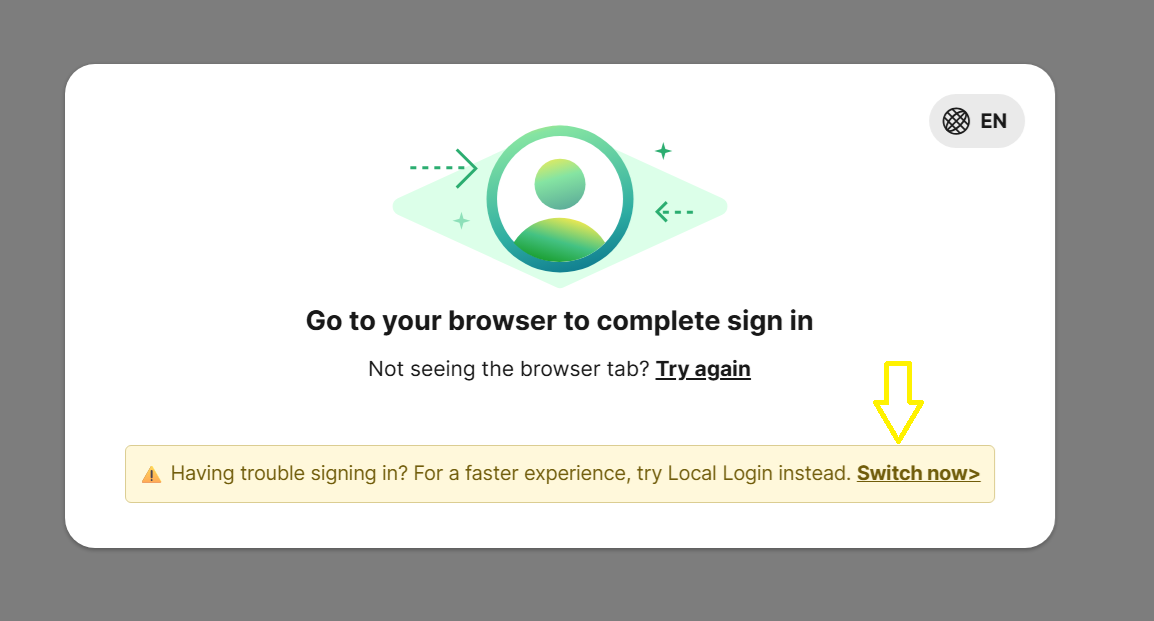
Wait about 30 seconds. A "Switch now" link will appear on the screen.
Click "Switch now" to log in directly within the Nero Start app.
Method 2: If you are ALREADY logged in
1. Open Nero Start.
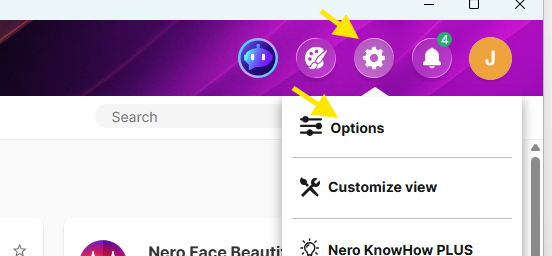
2. Go to Options.
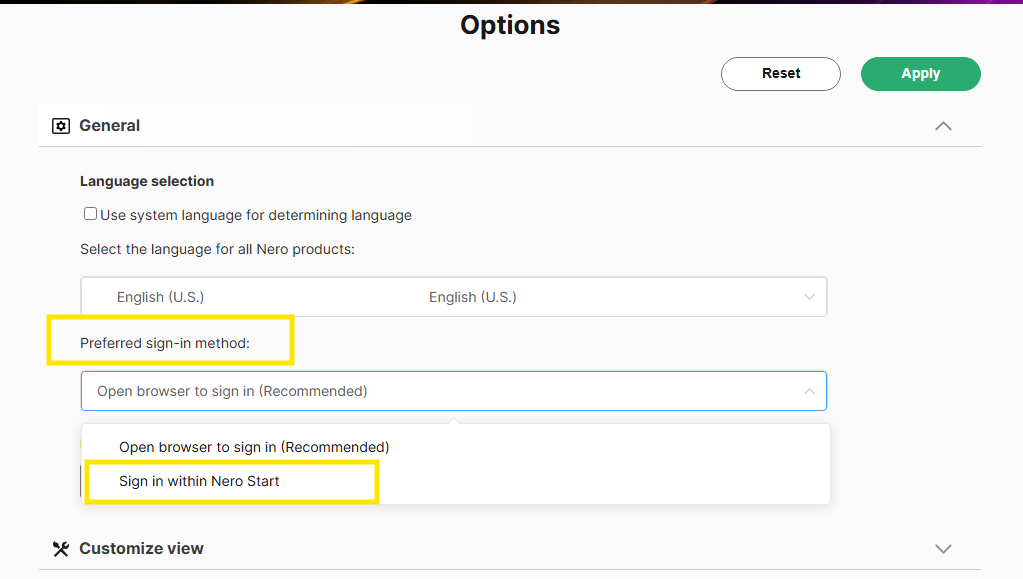
3. Find Preferred sign-in method (or a similarly named setting). Select option ‘Sign in within Nero Start’
4. Apply.