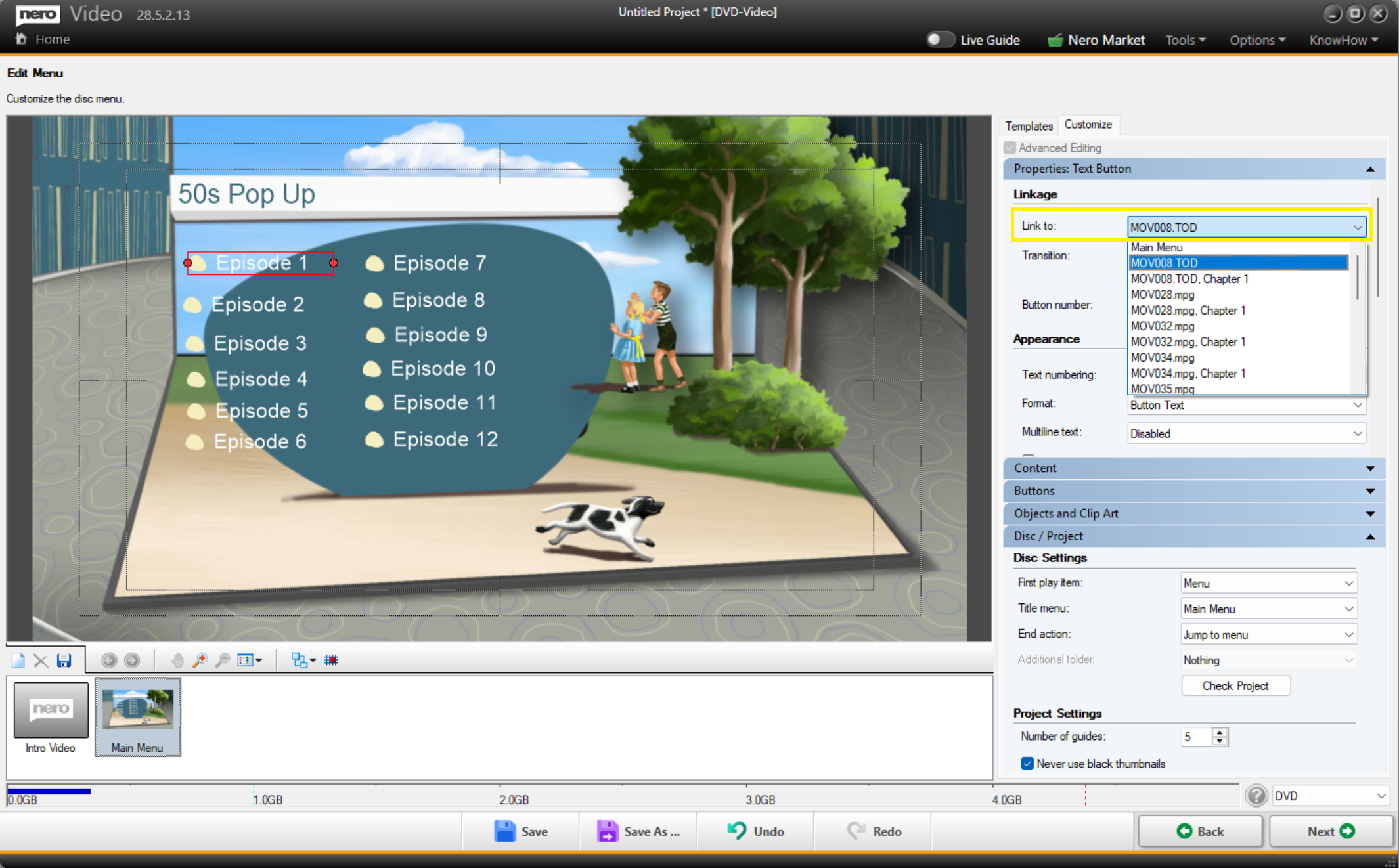
This guide explains how to create a single DVD/Blu-ray menu that contains buttons for all episodes—for example, Episode 1 through Episode 12—on one screen.
To create episode buttons on a single menu:
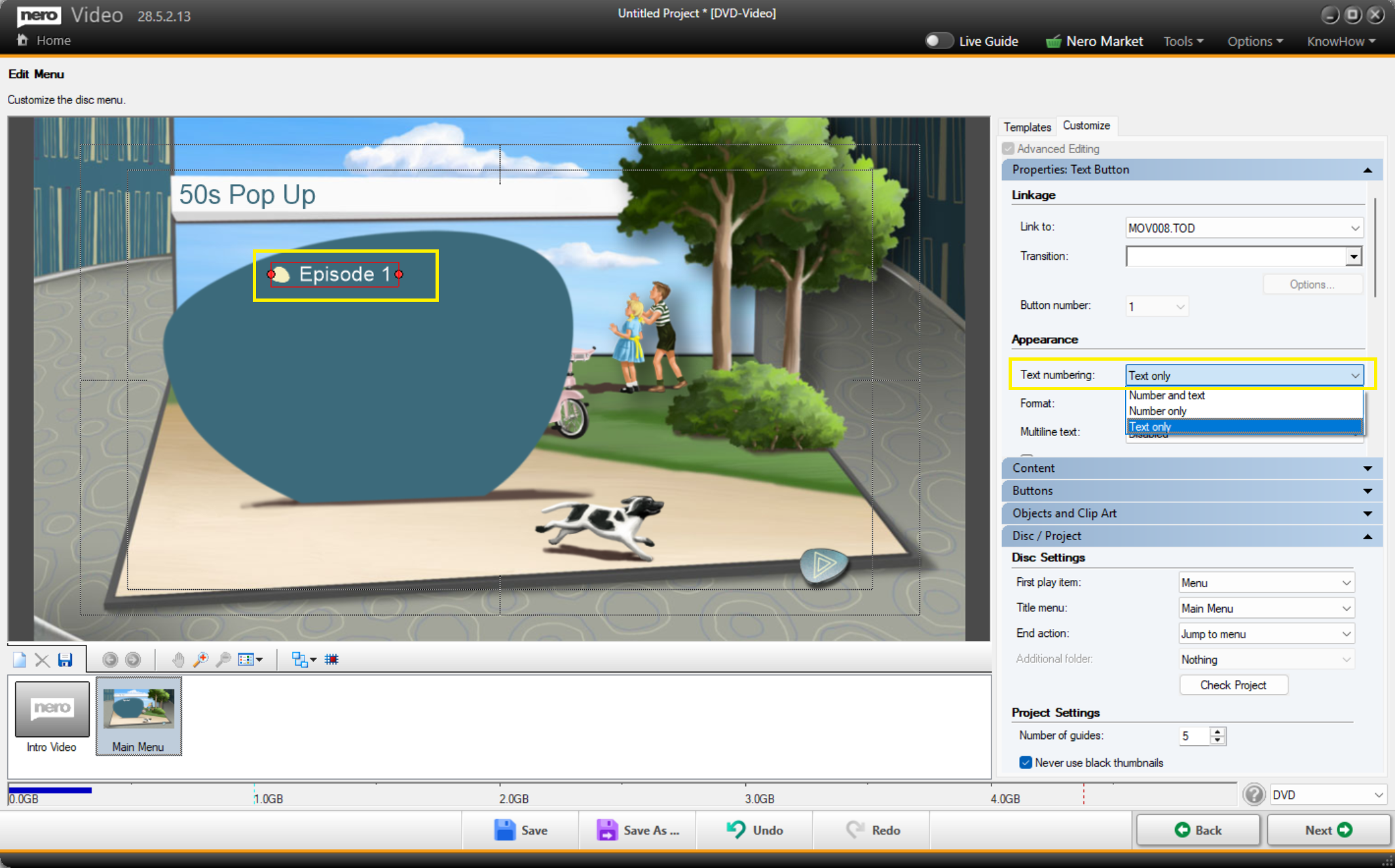
- Go to the Edit Menu page. Delete all existing text buttons except one.
- (Optional) If you do not want numbers to appear before the text, go to Appearance → Text numbering and select Text only.
- Select the remaining text button, edit its label (e.g., "Episode 1"), and adjust its position and size as needed.
- Right-click the button and select Duplicate. Repeat this step until you have the same number of buttons as the videos you want to burn (for example, 12 buttons for 12 episodes).
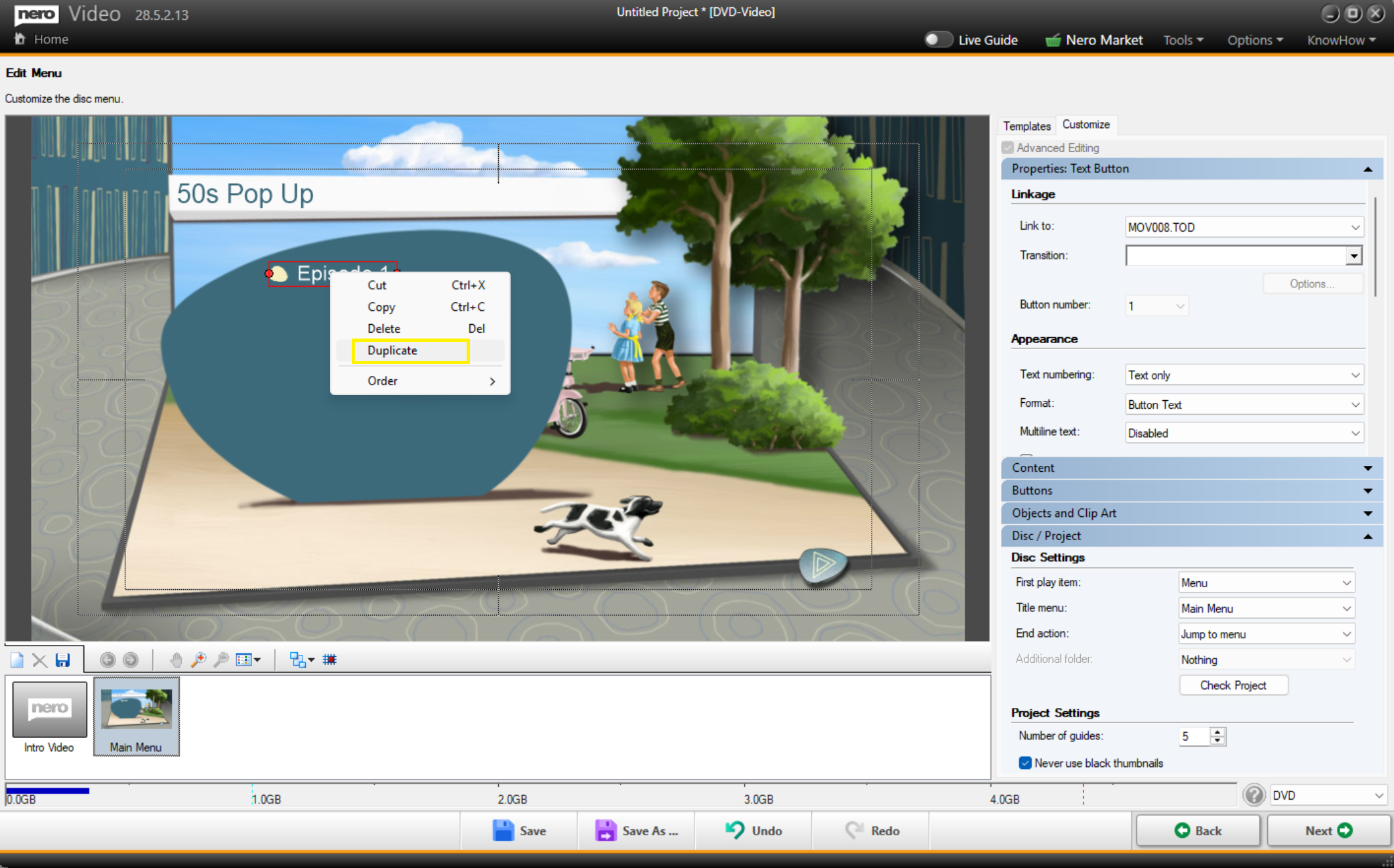
- Select each text button one by one and link it to the correct video title.