Use the Crop tool to remove unwanted areas from the top, bottom, left, or right edges of your video.
For precise removal—such as cutting a 5% stripe from the bottom of analog-captured footage—you can enter percentage values directly instead of using the on-screen drag handles.
1. Open Nero Video.
2. Import the video you want to crop.
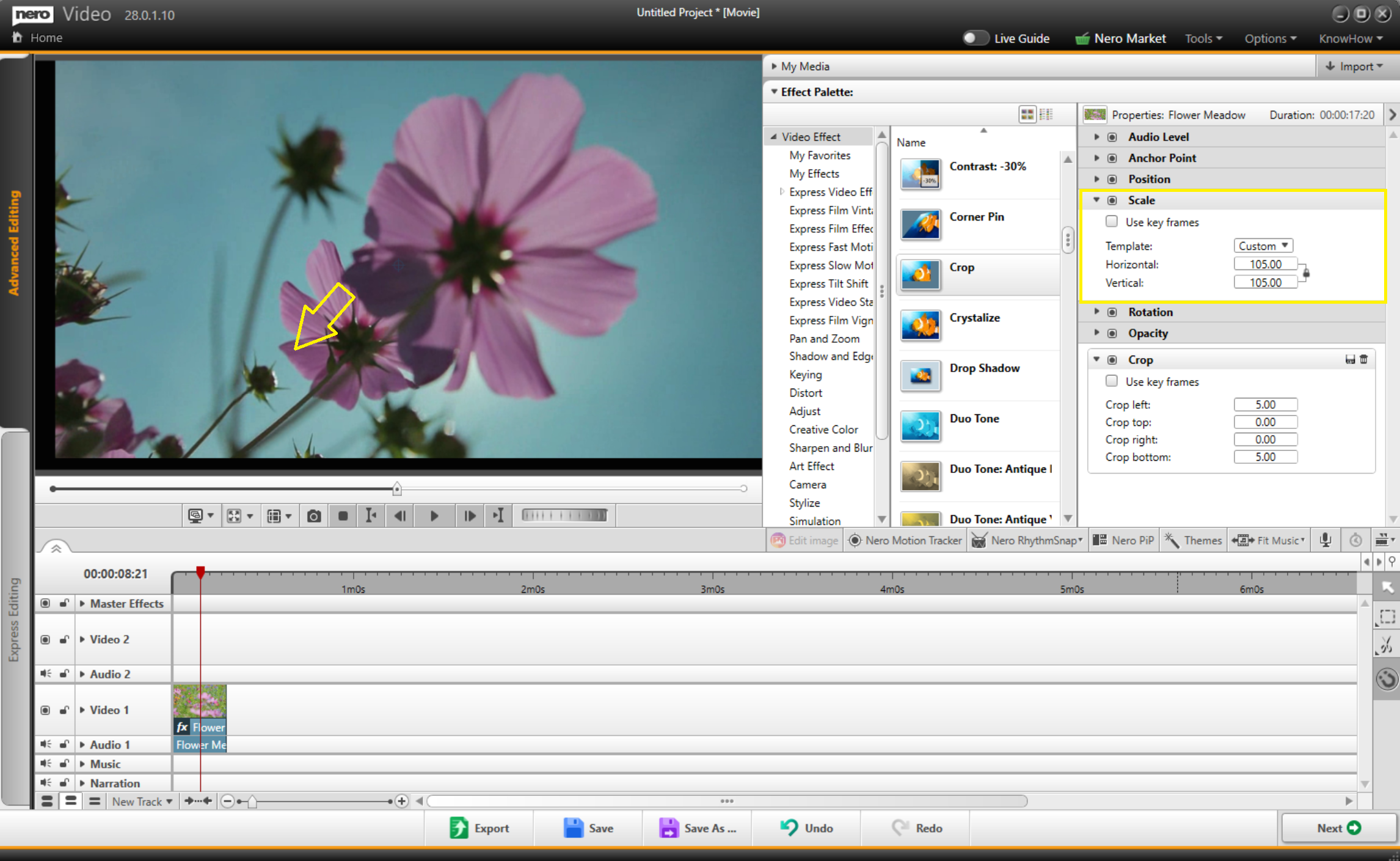
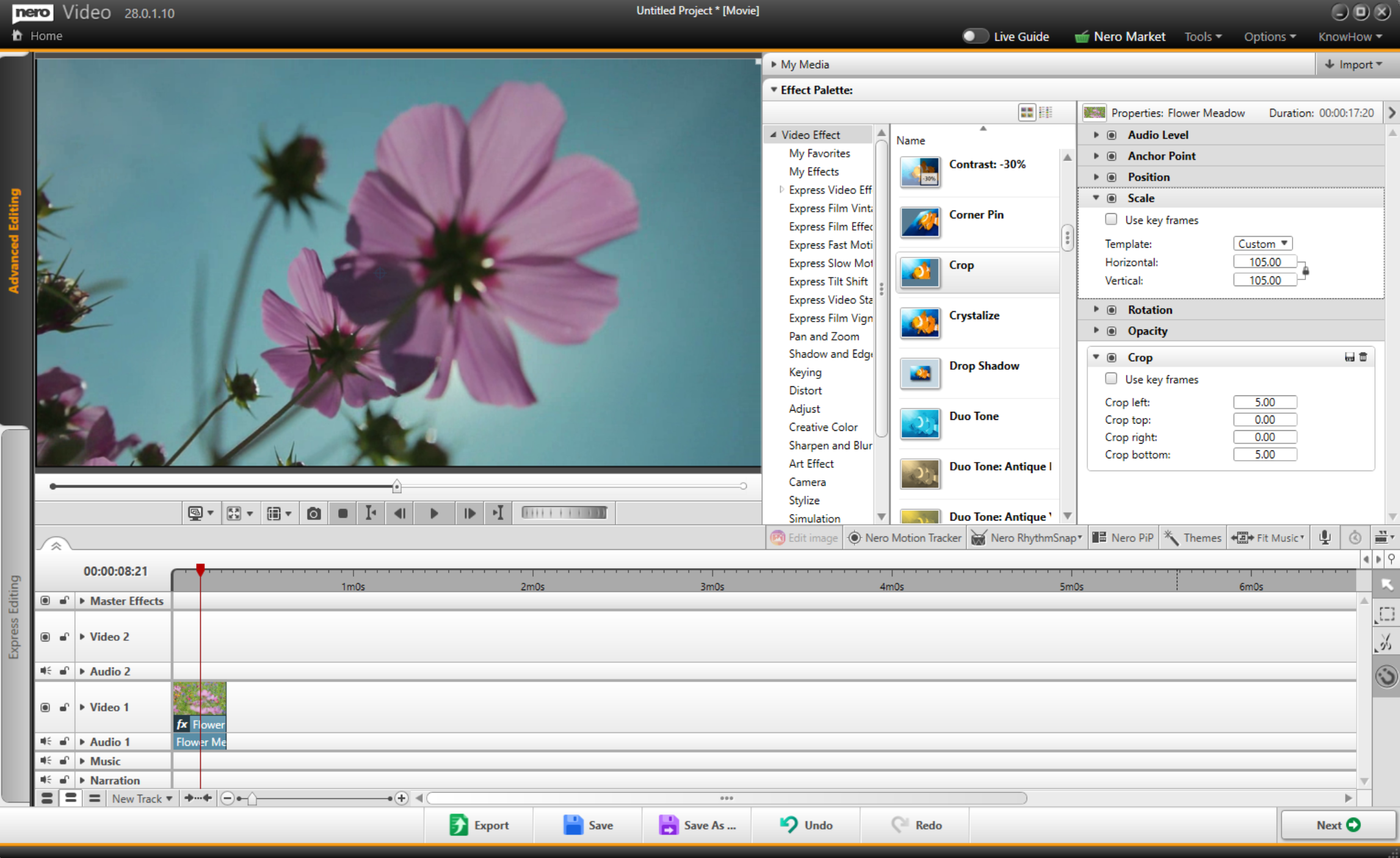
3. Apply the 'Crop' effect.
4. Set the percentage values for 'Crop Left / Crop Top / Crop Right / Crop Bottom'.
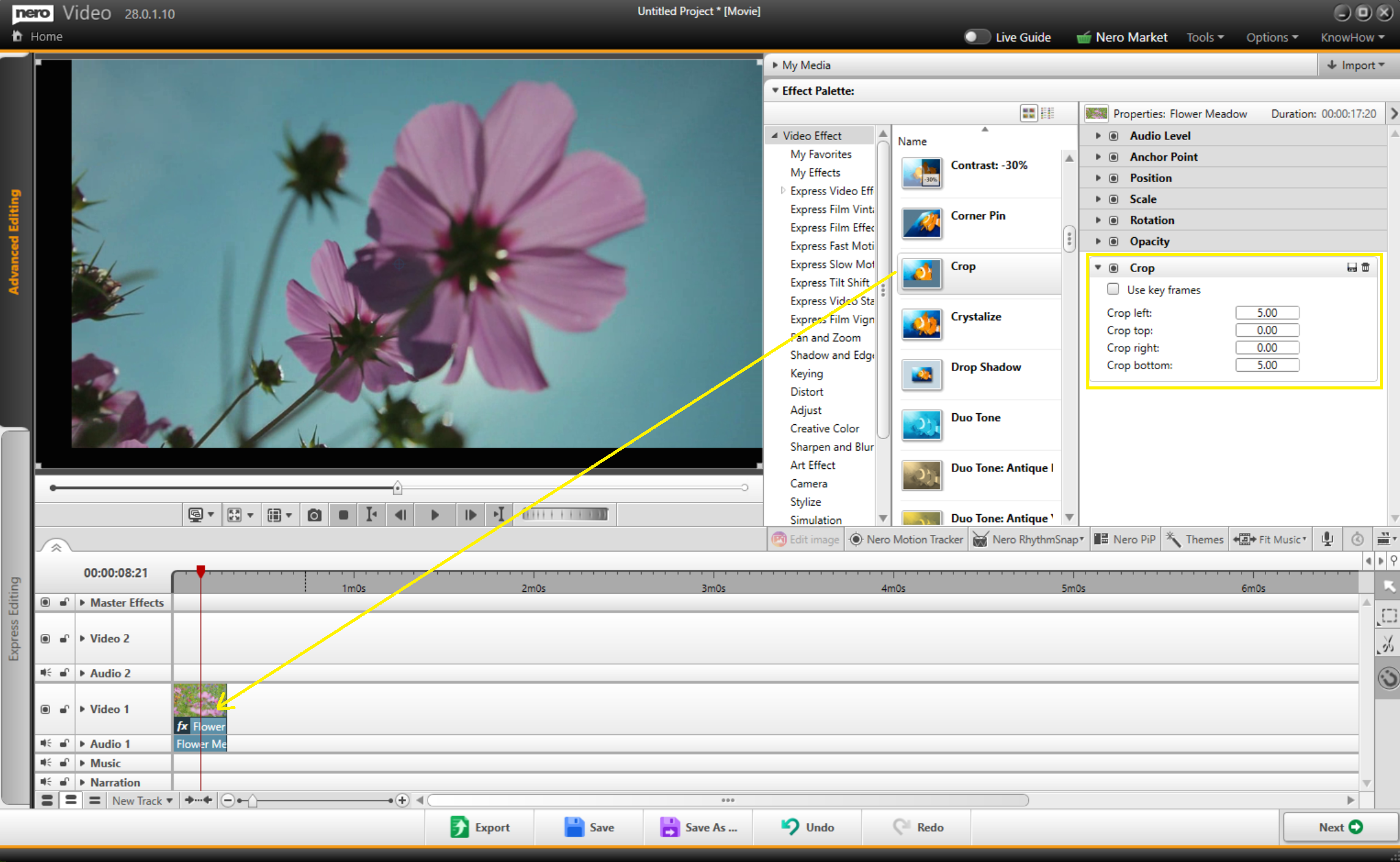 5. After cropping, adjust the 'Scale' parameter. In the preview window, drag the image toward the bottom-left corner to cover the black area created by cropping.