Your Nero software can be activated in one of two ways, depending entirely on your purchase channel. The key difference is whether your license is managed through your Nero Account or via a standalone Activation Code.
1. Purchased from the Official Nero Website
If you bought your software directly from www.nero.com, a Nero newsletter, links from Nero Support, or upgrade within Nero programs:You will NOT receive an activation code,you will receive an 8-character password.
- How it works: The email address you entered during checkout is automatically your Nero Account. The software license is instantly and permanently linked to this specific account.
- How to activate:
- Install Nero Start. You can always download the latest installer from here.
- Log in using the exact Nero Account (registered email address) associated with your purchase and the 8-character password.
- Your software will be unlocked and ready to use.
- > > Critical: You must log in with the correct account.
If your purchased software does not appear, you are likely logged in with a different email address. To resolve this: Log out of your current account, then log back in using the correct Nero Account (the email from your purchase receipt). Here is how to log out: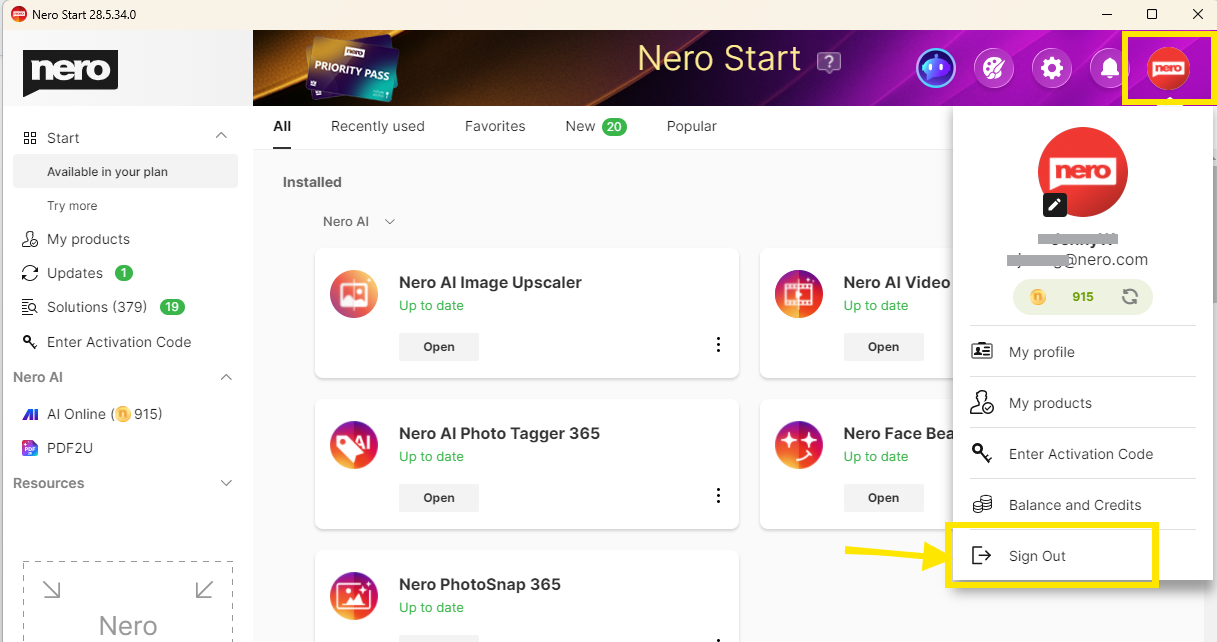
If your subscription is renewed or upgraded, since it is managed through an account-based system linked to your registered email address, simply log in successfully and use the “Update” option in the left-hand pane of Nero Start to get the latest version.
2. Purchased from an Authorized Retailer
If you purchased from an authorized third-party retailer (e.g., Nero Store in Amazon, Best Buy, magazines e.g. Computerbild, MediaMarktt or other software stores):
1. You WILL receive an activation code, typically in one of two formats depending on the retailer:
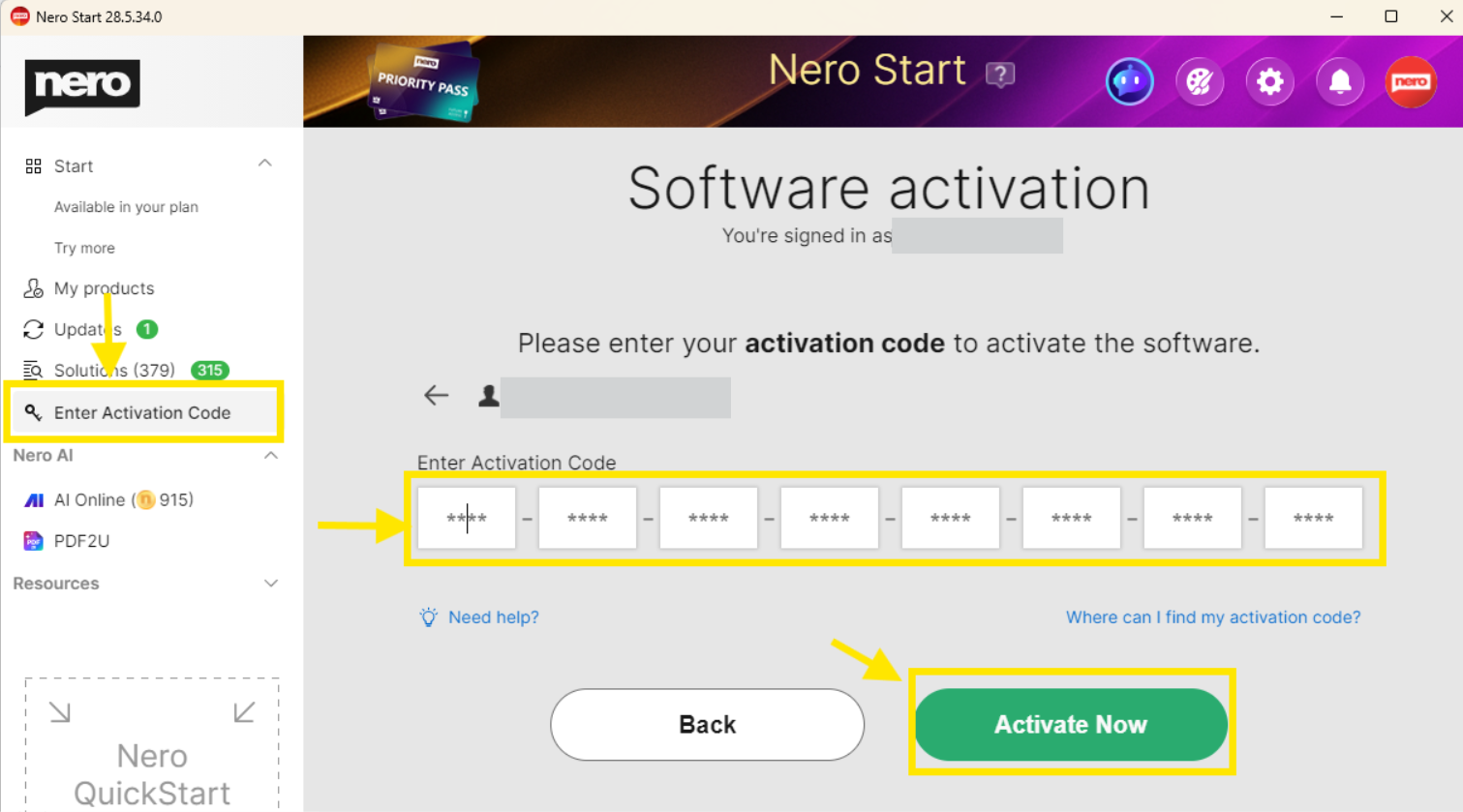
1). A 32-character activation code primarily used for standard software boxes and online retailers.
2). A 24-character activation code that begins with "NERO" (known as a POSA code). This code is commonly found on physical cards (like those sold in supermarkets). The code is printed on your store receipt after the cashier scans the card's QR code.
2. Regardless of the format (32-character or 24-character POSA code), both are activated in the same way within Nero Start. Your code is typically located in one of the following places: printed inside the physical product box, on a card included in the packaging, in your order confirmation email, or directly on your retail store receipt.
3. How it works: The license is tied to this unique code. You must redeem it to attach the software license to your chosen Nero Account.
How to activate:
1). Install Nero Start.
2). Log in with the Nero Account you wish to permanently link the software to (this can be a new or existing account).
3. Find "Enter Activation Code" in My Nero Account page left panel or Account Settings menu section in Nero Start and input your 32-character code.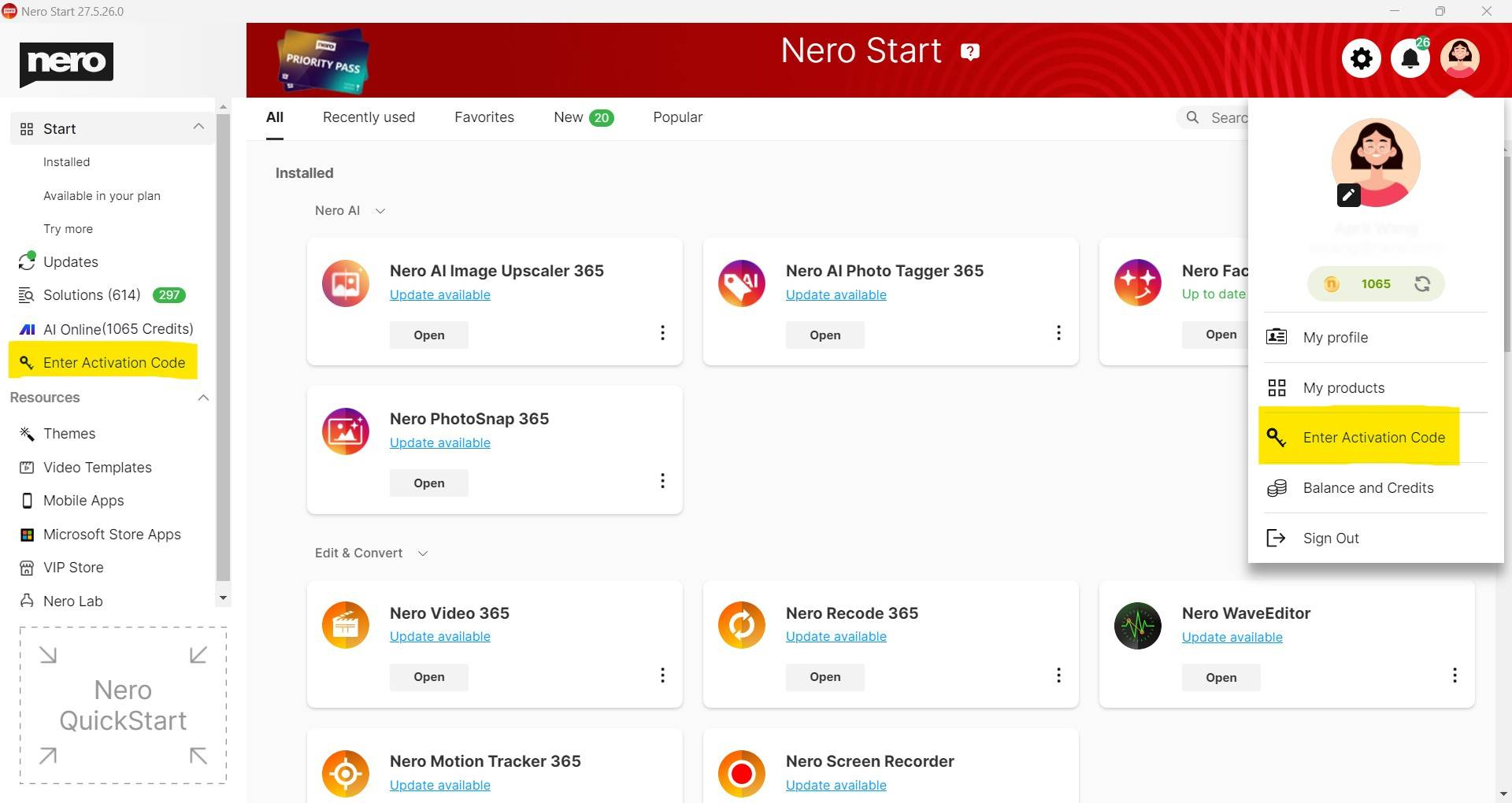
or 24-character code 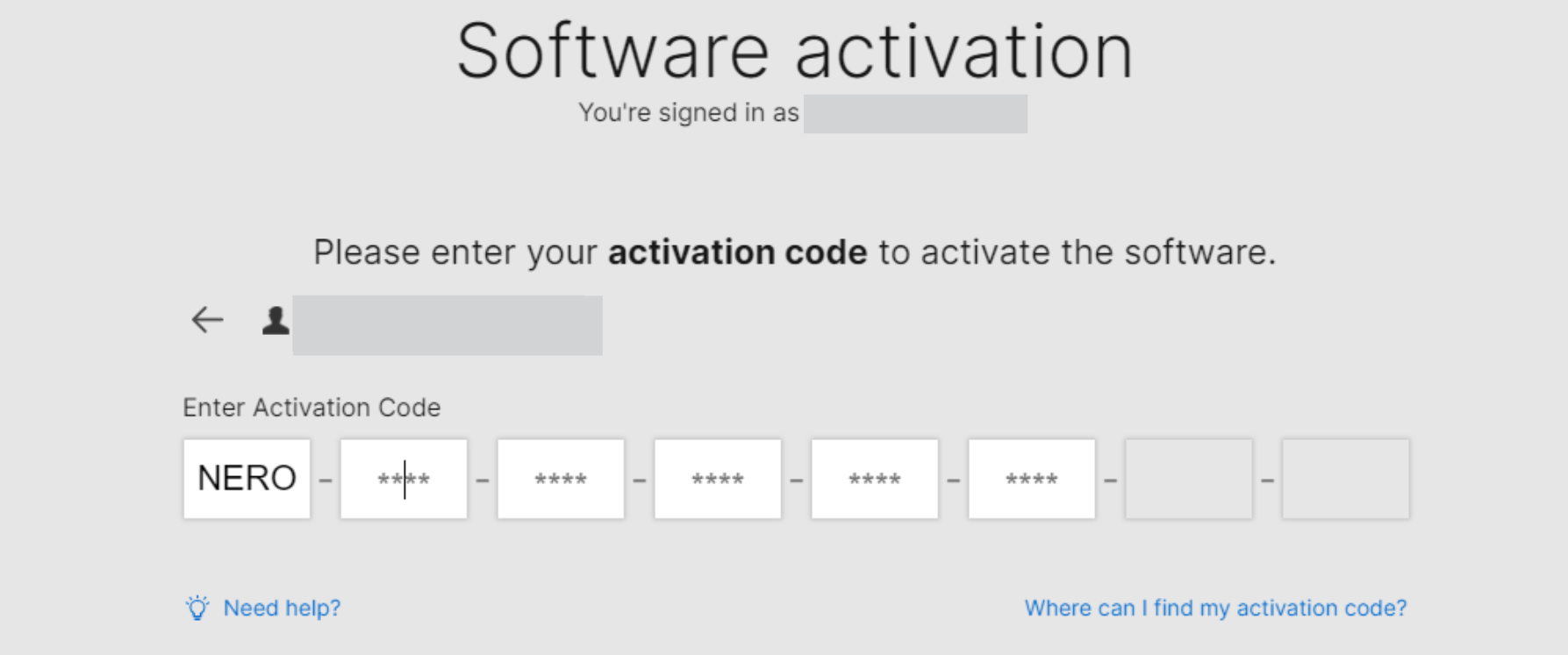
- The software will be activated and be permanently bound to the account you are logged into.
> > Important: Each activation code can be redeemed only once and manually.
Common Points of Confusion & Solutions
- "I received a code with an older version or a different product."
– Our licensing system has been updated. Direct purchases now use streamlined account-based licensing. - "I see an 'Enter Activation Code' field in Nero Start."
– This field is exclusively for licenses purchased from retailers. If you bought from nero.com, simply logging in with your correct Nero Account is all that's required. - "Do I need a code to reinstall?"
– No, you do not. Once a license is linked to your Nero Account (via website purchase or code redemption), it remains there. Just reinstall Nero Start, log in, and your software will be available. - "My software is missing after I log in."
– The most common reason is an account mismatch. Please verify you are logged in with the exact Nero Account (email) used for the purchase. Solution: Log out of the current account and log back in using the correct one. - "I'm logged into the correct account, but still don't see my software."
– This can sometimes occur if you are using an outdated version of Nero Start. An older version may not properly communicate with our licensing servers. Solution: Go to the 'Update' tab within Nero Start, check for updates and update Nero Start, then check again if your software appears as unlocked.
Need Further Help?
If you have followed the steps above and your issue persists, please contact our support team feedback@nero.com . To help us resolve your issue as quickly as possible, please provide the following information:
- A copy of your purchase receipt.
- The Nero Account email address you are using or trying to use.
- Screenshots of the problem. Clear screenshots (e.g., of error messages, the Nero Start interface showing missing software, or the account login screen) are extremely helpful and can often show us immediately what’s wrong.